Still image workspace
Kling AI image generator
The kling ai image generator gives you a focused starting point for creating still images from written direction. Describe the subject, mood, composition, and visual style, then review the result before deciding whether it should become part of a larger video project.
Related workflows
Choose the right creative path
Move from a still concept to motion, or use a dedicated control workflow when the composition needs more direction.
Focused workflow
The 3 things only it does
This route is built around still-image ideation rather than a full production timeline. Its value is the short path from visual brief to reviewable frame.
-
1
Translate a visual brief
Write what should appear in the frame, including the subject, setting, lighting, camera angle, palette, and overall visual language.
-
2
Explore a composition
Generate a still that helps you test the relationship between the main subject, background, perspective, and negative space.
-
3
Select a direction
Keep the strongest visual reference, revise the prompt, or carry the concept into an image-to-video workflow when motion becomes the priority.
Entry point comparison
This entry point vs the general one
The image route is the better fit when you need a single visual to inspect closely. The broader video route is more useful when movement and sequence planning lead the brief.
Image generator
General video generator
Primary output
Image generator
A still image for review, reference, or reuse
General video generator
A moving clip built around time and action
Starting input
Image generator
A visual description, with optional reference direction
General video generator
A scene or action description shaped for motion
Main creative question
Image generator
Does this frame look right?
General video generator
Does this sequence move and feel right?
Best for
Image generator
Concept frames, thumbnails, mood boards, and visual exploration
General video generator
Short scenes, transitions, camera movement, and animated moments
Revision focus
Image generator
Subject details, layout, lighting, and style
General video generator
Timing, motion, continuity, and action clarity
Natural next step
Image generator
Compare stills or send one into image-to-video
General video generator
Refine the clip or build another shot
Review standard
Image generator
Composition, anatomy, text, and fine details
General video generator
Motion quality, temporal consistency, and scene flow
From brief to frame
How to start
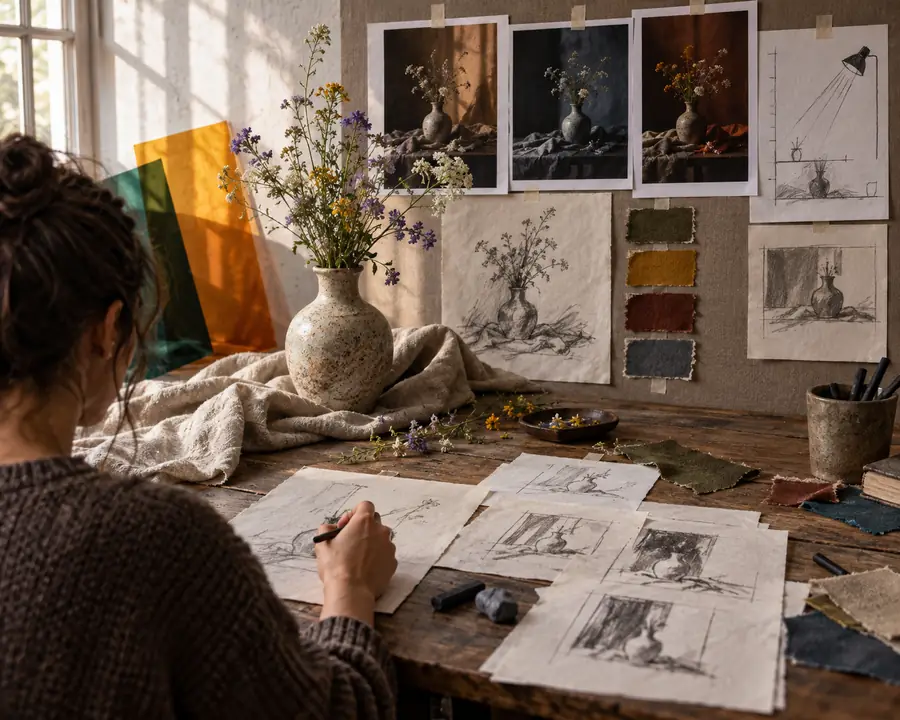
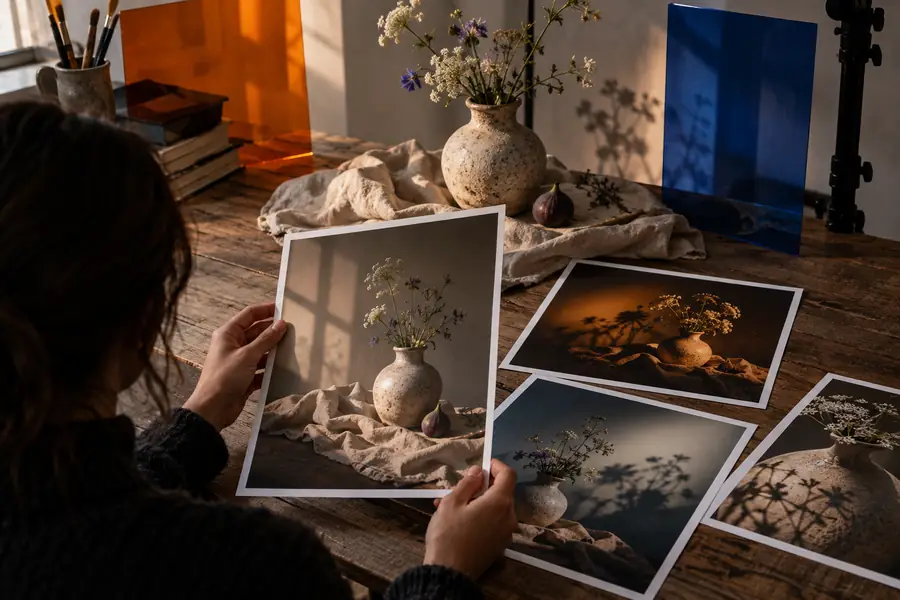
A useful image prompt gives the generator a clear subject and a deliberate visual treatment. Compare the rough direction with the refined frame, then revise only the part that needs attention.
- Basic direction
- Refined frame
Use the first result as a diagnostic, not a final verdict. If the subject is right but the layout is weak, keep the description and change only the camera angle, distance, lighting, or background.
Know the edges
Limits and workarounds
A focused image workflow is useful, but it does not remove the normal challenges of generative visuals. Check the frame carefully before publishing or extending it into motion.
-
Small text may be unreliable
Posters, labels, interface copy, and logos can appear misspelled, warped, or inconsistent between generations.
WorkaroundLeave text out of the generation when possible, then add precise typography in an editing tool.
-
Fine anatomy needs review
Hands, faces, jewelry, repeated objects, and complex interactions may contain subtle visual errors even when the overall frame looks strong.
WorkaroundGenerate alternate versions, simplify the pose, and inspect the image at full size before reuse.
-
A still does not prove motion quality
A convincing composition cannot guarantee that the same subject will move naturally in a later video workflow.
WorkaroundTreat the image as a strong reference frame, then test motion separately with a restrained action prompt.
-
Results depend on direction
Vague prompts can produce attractive but generic images that miss the intended subject, camera position, or mood.
WorkaroundSpecify the subject first, then add setting, composition, lighting, style, and exclusions in that order.
Practical checklist
Image generation at a glance
Use these three checkpoints to keep the workflow focused from the first prompt to the final review.
- 1 Describe the subject and the visual outcome before adding decorative detail.
- 1 brief
- 2 Check both the overall composition and the small details before choosing a frame.
- 2 reviews
- 3 Keep the still, revise the prompt, or continue into an image-to-video workflow.
- 3 paths
Common question
Kling AI image generator FAQ
Yes, Kling AI can be used as an image-generation entry point for creating still visuals from a written description. The exact controls and available options can vary by the current interface or model selection.
You can use it to explore subjects, environments, compositions, lighting treatments, and visual styles as still frames. It is especially useful for concept art, mood boards, thumbnails, and references for later video work.
Yes. The image workflow is centered on evaluating one frame, while video generation adds time, movement, and continuity. Choose the image route when composition matters first, and move to video when action becomes part of the brief.
A still can serve as a visual starting point for an image-to-video workflow, but a good frame does not guarantee natural motion. Review the composition first, then test a simple movement direction and refine from there.